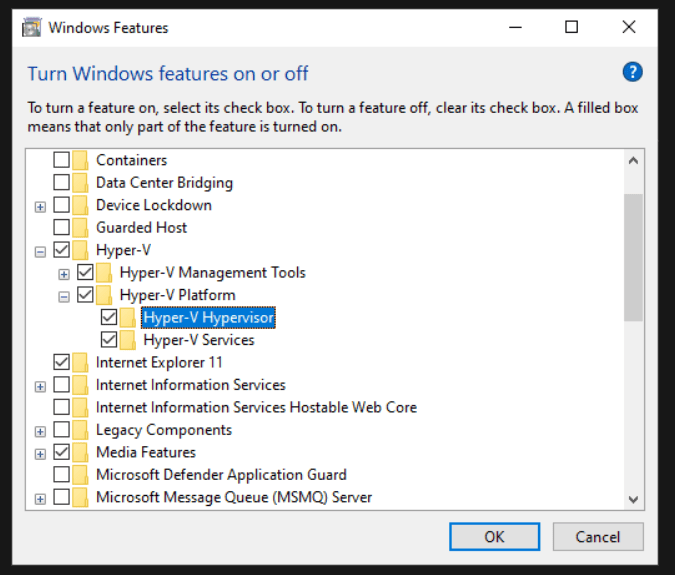
In this article, we will explain How to Disable Hyper-V for your Windows. Some hacks only function correctly when Hyper-V has been disabled. A quick and easy way to check if this is already the case is the following:
1. Open the Start Menu by pressing the Windows key or clicking on the Windows icon at the bottom left of the screen
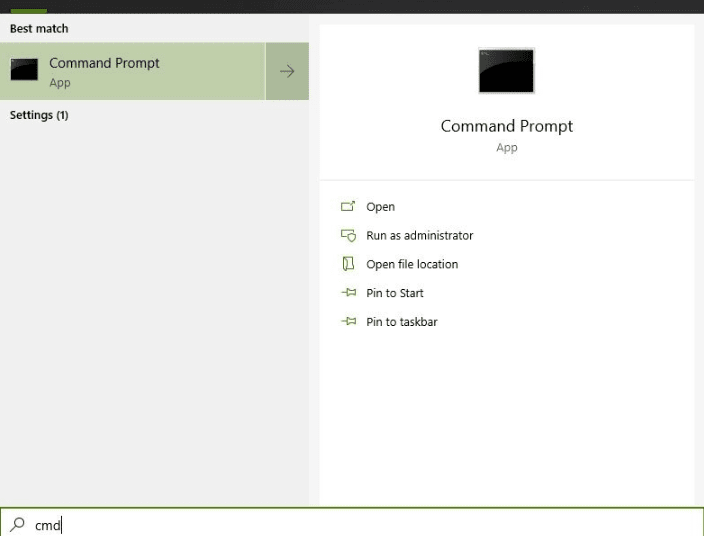
2. When the Start Menu opens, start typing “cmd” and wait till you see the following:
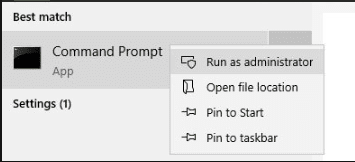
3. Now right-click on the “Command Prompt” App and click on “Run as administrator”:
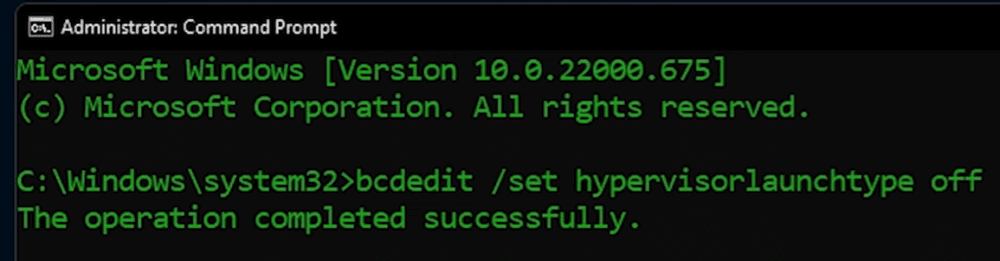
4. In the new Command window, type the following:
bcdedit /set hypervisorlaunchtype off
and then press “Enter”
5. Than Restart your PC
==============================================
Or you can turn it off by using Control Panel as well.
1. In Control Panel, select Programs and Features.
2. Select Turn Windows features on or off.
3. Expand Hyper-V, expand Hyper-V Platform, and then Uncheck All the Hyper-V Hypervisor check box.